

UI Elements
Debby provides a comprehensive set of custom UI Toolkit elements that are used internally by the Adjust module but are also available for developers to use in custom modules or their own UI implementations. All elements follow Unity's UI Toolkit conventions and can be used in both UXML and C# code.
WARNING
Using Debby elements in your custom modules / outside of the Adjust module is currently experimental. Some functionality might be missing or not work as expected. If you encounter any issues / missing functionality, please stop by our Discord server and let us know!
UXML Namespace
You can use Debby elements as-is, in both development and production UI. We recommend adding this namespace prefix to your UXML files, for cleaner usage:
<ui:UXML
        xmlns:ui="UnityEngine.UIElements"
        xmlns:debby="Debology.Debby.Elements"
        editor-extension-mode="False">

        <!-- Now you can use this: -->
<debby:DebbyButton name="Button"/>
        <!-- Instead of: -->
<Debology.Debby.Elements.DebbyButton name="Button"/>
        </ui:UXML>
Organizational Elements
DebbyCategory
An organizational element with a title that positions child elements horizontally. This is the top-level organizational element used by the Adjust module by default.
 Screenshot showing: Multiple DebbyCategory elements with different controls inside
Properties:
Title(string): The category title displayed at the topValue(string): Optional value text displayed next to the title (primarily used by Profile module)Suffix(string): Optional suffix text displayed after the value
Usage in C#:
var category = new DebbyCategory("Player Settings");
category.Add(new DebbyToggle("God Mode"));
category.Add(new DebbyIntSlider("Health", 0, 100));
Usage in UXML:
<debby:DebbyCategory title="Player Settings">
    <debby:DebbyToggle label="God Mode"/>
    <debby:DebbyIntSlider label="Health"/>
</debby:DebbyCategory>
DebbyGroup
An organizational element with a title that positions child elements vertically. Use this to create sub-sections within categories.

Usage in C#:
var group = new DebbyGroup("Advanced Settings");
group.Add(new DebbyFloatSlider("Speed Multiplier", 0f, 10f));
group.Add(new DebbyToggle("Enable Debug Mode"));
Usage in UXML:
<DebbyGroup title="Advanced Settings">
    <DebbyFloatSlider label="Speed Multiplier"/>
    <DebbyToggle label="Enable Debug Mode"/>
</DebbyGroup>
Control Elements
All control elements inherit from DebbyControl, which provides common functionality:
Common Properties:
Label(string): The display label for the controlvalue: The current value (type varies by control)
DebbyButton
A button element with optional icon support and progress indicator for async operations.

Properties:
Label(string): Button textIcon(DebbyIcon): Optional icon displayed on the buttonClicked(event): Event fired when button is clicked
Methods:
SetProgress(float progress): Shows progress bar (0-1) or hides it (-1)
Usage in C#:
var button = new DebbyButton("Reset Game", DebbyIcon.Refresh);
button.Clicked += () => Debug.Log("Game reset!");

// For async operations
button.SetProgress(0.5f); // Show 50% progress
button.SetProgress(-1f);   // Hide progress bar
Usage in UXML:
<debby:DebbyButton label="Reset Game" icon="Refresh"/>DebbyToggle
A toggle switch for boolean values.

Properties:
Label(string): Toggle labelvalue(bool): Current toggle state
Usage in C#:
var toggle = new DebbyToggle("Enable Feature");
toggle.value = true;
toggle.RegisterValueChangedCallback(evt =>
{
    Debug.Log($"Toggle changed to: {evt.newValue}");
});
Usage in UXML:
<debby:DebbyToggle label="Enable Feature" value="true"/>DebbyTextField
A text input field for string values.

Properties:
Label(string): Field labelvalue(string): Current text value
Usage in C#:
var textField = new DebbyTextField("Player Name");
textField.value = "Player 1";
textField.RegisterValueChangedCallback(evt =>
{
    Debug.Log($"Name changed to: {evt.newValue}");
});
Usage in UXML:
<debby:DebbyTextField label="Player Name" value="Player 1"/>Numeric Controls
Debby provides both picker (with +/- buttons) and slider variants for all numeric types.
Debby Picker
DebbyIntPicker, DebbyFloatPicker, DebbyDoublePicker, DebbyLongPicker, DebbyUIntPicker, DebbyULongPicker
Pickers / input fields for numerical values with increment/decrement buttons.

Properties:
Label(string): Field labelvalue: Current valueMin: Minimum allowed valueMax: Maximum allowed valuePageSize: Amount to increment/decrement per button click
Usage in C#:
var intPicker = new DebbyIntPicker("Name", min: 1, max: 100);
var floatPicker = new DebbyFloatPicker("Name", min: 0f, max: 10f);
var doublePicker = new DebbyDoublePicker("Name", min: 1.0, max: 20.0);
var longPicker = new DebbyLongPicker("Name", min: 1, max: 100);
var uintPicker = new DebbyUIntPicker("Name", min: 1, max: 100);
var ulongPicker = new DebbyULongPicker("Name", min: 1, max: 100);
Usage in UXML:
<debby:DebbyIntPicker label="Level" value="10"/>
<debby:DebbyFloatPicker label="Level" value="10"/>
<debby:DebbyDoublePicker label="Level" value="10"/>
<debby:DebbyLongPicker label="Level" value="10"/>
<debby:DebbyUIntPicker label="Level" value="10"/>
<debby:DebbyULongPicker label="Level" value="10"/>
Debby Slider
A slider control for numerical values
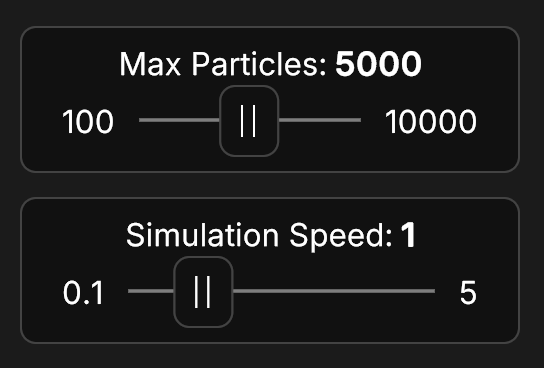
Properties:
Label(string): Field labelvalue: Current valueMin: Minimum allowed valueMax: Maximum allowed valuePageSize: Amount to increment/decrement per button click
Usage in C#:
var intPicker = new DebbyIntSlider("Name", min: 1, max: 100);
var floatPicker = new DebbyFloatSlider("Name", min: 0f, max: 10f);
var doublePicker = new DebbyDoubleSlider("Name", min: 1.0, max: 20.0);
var longPicker = new DebbyLongSlider("Name", min: 1, max: 100);
var uintPicker = new DebbyUIntSlider("Name", min: 1, max: 100);
var ulongPicker = new DebbyULongSlider("Name", min: 1, max: 100);```
Usage in UXML:
<debby:DebbyIntSlider label="Health" value="75" />Vector Controls
DebbyVector2Field, DebbyVector3Field, DebbyVector4Field

Properties:
Label(string): Field labelvalue(Vector2): Current vector value
Usage in C#:
var vector2Field = new DebbyVector2Field("Position");
var vector3Field = new DebbyVector3Field("Position");
var vector4Field = new DebbyVector4Field("Position");
Usage in UXML:
<debby:DebbyVector2Field label="Position"/>
<debby:DebbyVector3Field label="Position"/>
<debby:DebbyVector4Field label="Position"/>
Dropdown

WARNING
Dropdowns only work inside of Debby, trying to use them in your own UI will not work.
DebbyEnumDropdown
A "typed" dropdown element for enum values. Only available from C#.
Properties:
Label(string): Field labelvalue(Enum): Current enum value
Usage in C#:
public enum GameState { Menu, Playing, Paused, GameOver }

var dropdown = new DebbyEnumDropdown<GameState>("Game State");
dropdown.RegisterValueChangedCallback(evt =>
{
    Debug.Log($"State changed to: {evt.newValue}");
});
DebbyDropdown
A string based dropdown with a custom list of options.
Properties:
Label(string): Field labelvalue(string): Currently selected valueChoices(List<string>): Available options
Usage in C#:
var choices = new [] { "Easy", "Normal", "Hard", "Expert" };
var dropdown = new DebbyDropdown("Difficulty", choices);
Color Picker
DebbyColorButton
A button that displays a color and opens a color picker when clicked.


WARNING
The Color Picker only works inside of Debby, trying to use it in your own UI will not work.
Properties:
Label(string): Field labelvalue(Color): Current color value
Usage in C#:
var colorButton = new DebbyColorButton("Player Color");
colorButton.value = Color.red;
colorButton.RegisterValueChangedCallback(evt =>
{
    Debug.Log($"Color changed to: {evt.newValue}");
});
Usage in UXML:
<debby:DebbyColorButton label="Player Color" />Using Elements in UI Builder
All Debby elements can be used in Unity's UI Builder:
- Open UI Builder (
Window > UI Toolkit > UI Builder) - In the Library panel, expand "Debby/Adjust" (Unity 6+) or "Debology/Debby" (Unity 2022+) to see all available elements
- Drag elements into your UXML document
- Configure properties in the Inspector panel
INFO
Styling Elements
All Debby elements use USS classes following BEM naming conventions. You can customize their appearance by adding your own USS stylesheet.
Example USS customization:
/* Customize button appearance */
.debby-button {
    background-color: #2196F3;
    border-radius: 8px;
}

.debby-button:hover {
    background-color: #1976D2;
}

/* Customize category title */
.debby-category__title {
    font-size: 16px;
    color: #FFD700;
}
Troubleshooting
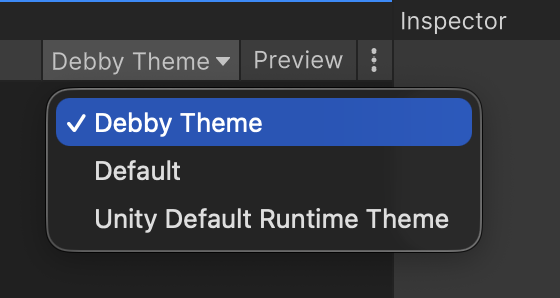
Elements are not styled correctly
Make sure you have the DebbyTheme selected in UI Builder.
XmlException: 'debby' is an undeclared prefix
Make sure you have the Debby namespace prefix added to your UXML file:
xmlns:debby="Debology.Debby.Elements"