

Report
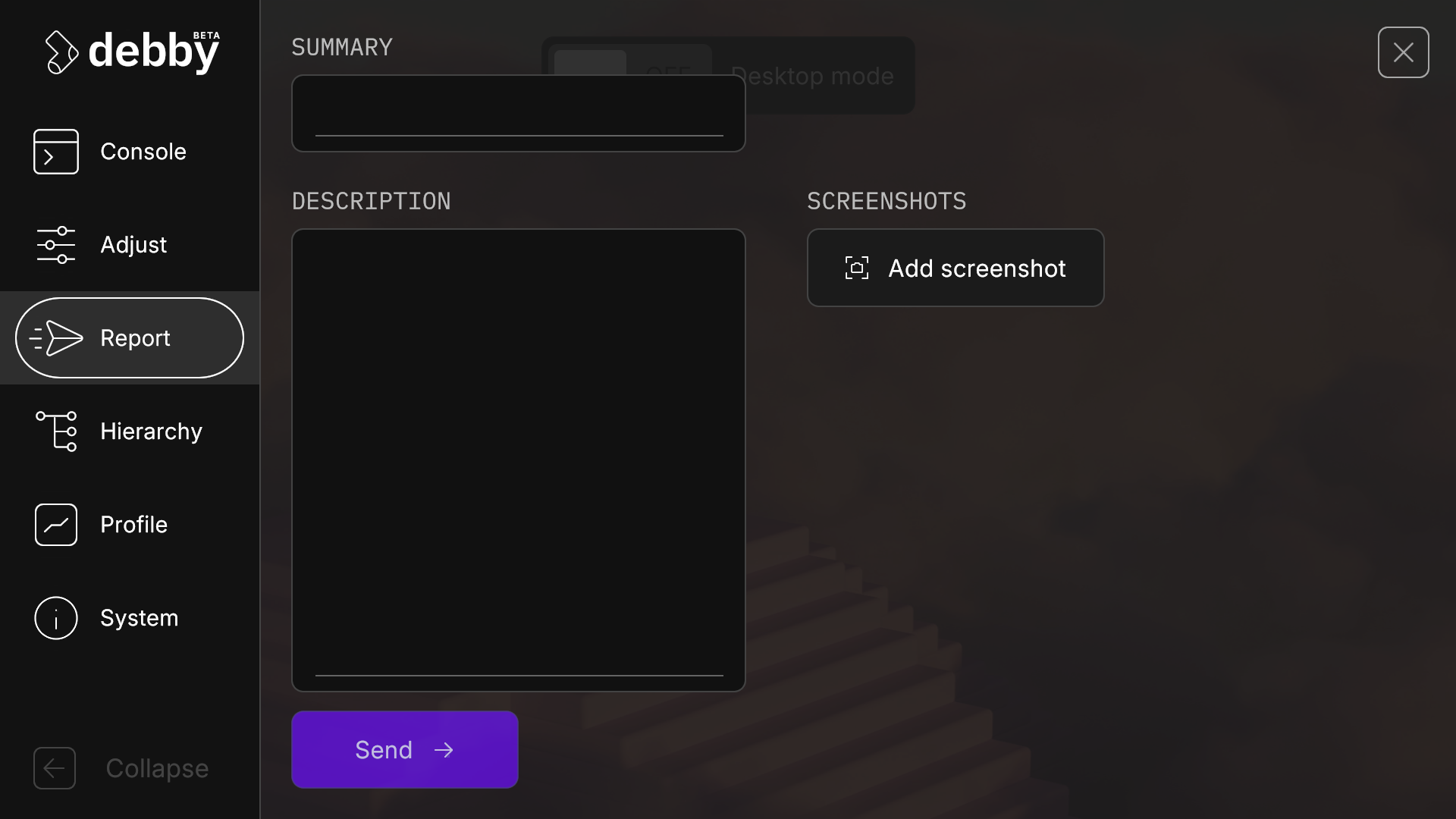
The Report Module enables testers and players to submit detailed bug reports directly from within your application. Reports include logs, screenshots, system info, and can integrate with Unity User Reporting or Slack - making bug tracking seamless during testing and production. You can also create your own reporting adapter to send the reports to any service of your choice.
Unity User Reporting
To use Unity's User Reporting service:
- Add Package: Install
com.unity.services.user-reportingfrom Package Manager - Configure Project: Link your Unity project ID
- Initialize Unity Services: Make sure you initialize Unity Services in your project
- Enable in Settings: Check "Use User Reporting" in
DebbySettings
Slack
Debby supports two methods for sending reports to Slack: Incoming Webhooks (simple, no screenshots) and Bot Tokens (full-featured with screenshots and log files).
Method 1: Incoming Webhooks (Simple)
Incoming Webhooks provide a simple way to send messages to Slack, but cannot upload files (screenshots or logs).
Setup Steps:
Create Incoming Webhook in Slack:
- Go to Slack API: Incoming Webhooks
- Click "Create your Slack app" or use an existing app
- Enable "Incoming Webhooks"
- Click "Add New Webhook to Workspace"
- Select the channel where reports should be sent
- Copy the webhook URL (looks like
https://hooks.slack.com/services/T00000000/B00000000/XXXXXXXXXXXXXXXXXXXX)
Configure Debby:
- Open
DebbySettingsin Unity (Assets → Resources → Debby) - Set Report Mode to
Slack Webhook - Paste the webhook URL into Slack Webhook URL
- Enable the Report Module checkbox
- Open
Pros:
- Simple setup (no OAuth required)
- No permissions management
- Works immediately
Cons:
- Cannot upload screenshots
- Cannot upload log files
- Limited to the pre-configured channel
Method 2: Bot Token (Full-Featured)
Bot Tokens provide full API access, enabling screenshot and log file uploads alongside the report.
Setup Steps:
Create a Slack App:
- Go to Slack API: Your Apps
- Click "Create New App" → "From scratch"
- Name your app (e.g., "Debby Reports") and select your workspace
Configure Bot Permissions:
- Navigate to "OAuth & Permissions" in the sidebar
- Scroll to "Scopes" → "Bot Token Scopes"
- Add the following scopes:
chat:write- Post messages to channelsfiles:write- Upload files (screenshots, logs)
- Click "Install to Workspace" at the top
- Authorize the app
Get Bot Token and Channel ID:
- Copy the Bot User OAuth Token (starts with
xoxb-) - To get the Channel ID:
- Right-click on the target channel in Slack
- Select "View channel details"
- Copy the Channel ID from the bottom of the popup
- Copy the Bot User OAuth Token (starts with
Configure Debby:
- Open
DebbySettingsin Unity (Assets → Resources → Debby) - Set Report Mode to
Slack Bot - Paste the bot token into Slack Bot Token
- Paste the channel ID into Slack Channel
- Enable the Report Module checkbox
- Open
Pros:
- Uploads screenshots automatically
- Uploads full debug logs
- Can send to any channel the bot has access to
Cons:
- More complex initial setup
- Requires OAuth token management
Security Notice
Bot tokens provide API access to your Slack workspace. Keep them secure and never distribute builds with embedded bot tokens to external users. Consider using environment variables or server-side solutions for production builds.
Choosing a Method
| Feature | Incoming Webhook | Bot Token |
|---|---|---|
| Screenshots | ❌ No | ✅ Yes |
| Log Files | ❌ No | ✅ Yes |
| Setup Complexity | ⭐ Simple | ⭐⭐⭐ Moderate |
| Channel Flexibility | ❌ Fixed | ✅ Any channel |
| Security Risk | ⭐ Low | ⭐⭐⭐ Moderate |
Custom Adapter
You can create your own reporting adapter to send the reports to any service of your choice, using the IDebbyReportAdapter.
To setup a custom adapter:
- In
DebbySettings, set Report Mode toManual - Implement
IDebbyReportAdapter - Set the adapter when calling
Debby.Initialize(config => config.SetCustomReportAdapter(...))
Example:
using System;
using System.Threading.Tasks;
using Debology.Debby.Modules.Report.Adapters;
using UnityEngine;

public class CustomReportAdapter : IDebbyReportAdapter
{
    public bool SupportsScreenshots => true;

    public async Task<bool> SendReport(string summary, string description, Action<float> progress)
    {
        // Send the report to your service here
        progress?.Invoke(0.5f);

        // Your API call logic
        // await YourReportingService.SendAsync(summary, description);

        progress?.Invoke(1f);

        // Return true if the report was sent successfully
        return true;
    }

    public void AddScreenshot(Texture2D screenshot)
    {
        // Add the screenshot to the report here
        // Store it for later upload or process immediately
    }

    public void Clear()
    {
        // Clear the report / screenshots here
    }
}
Usage:
using Debology.Debby;
using UnityEngine;

public class GameInitializer : MonoBehaviour
{
    void Awake()
    {
        Debby.Initialize(config =>
        {
            config.SetCustomReportAdapter(new CustomReportAdapter());
        });
    }
}
API
The Report module API (IReportModule) provides programmatic access to pre-fill report data and open the report UI. Access it via Debby.Report.
SetReport
Pre-fills the summary and description fields in the Report module. The report module should be opened before calling this method.
void SetReport(string summary, string description)Parameters:
summary: Short title/summary of the reportdescription: Detailed description of the issue
WARNING
Any existing summary/description will be overwritten when calling SetReport, but screenshots are preserved.
Open
Opens the Report module in the Debby UI.
void Open()